Showing posts with label blogger tricks. Show all posts
Showing posts with label blogger tricks. Show all posts
Monday, December 26, 2016
Is Running A Gaming Blog A Waste Of Time - Is It So?

Hello folks!.. Today i have jumped in with a very exciting discussion about “Is Running a Gaming Blog Really a Waste of Time". Have you wondered to launch a gaming blog where you can provide free games and software’s? Have you ever thought to earn with gaming niche blogs?. Well we will discuss about this very interesting and hot discussion. Running a gaming blog where you can provide free games and software’s is really an easy job in blogging compared to others, yet there are some undetermined things of which we will have to take care. I have seen a hundred of gaming blogs; moreover they are earning a handsome amount. Though not many of us will successful in launching a gaming blog. Let’s get in deep by understanding each fact separately. Read out them carefully so as to build a successful blog and start earning a good avenue.
1// What Facts Should Be Understood Before Getting Started.
If truth be told, Google doesn't like blogs providing free and cracked games and software’s. Even though, Google launches their updates which cleans the search engine and removes the links of gaming blogs. Google always check each blog to see what activities are going on. If a user's wishes to launch a gaming blog in which he will provide free games and software’s, Google will of course want to kill that blog. You may have observed blogs providing free games and software’s; nevertheless, they earn a huge amount. Now you may be inquisitive about the way to earn with gaming blogs. Well that isn't hard; we will just have to work hard.2// How To Get Started
Before starting money, you will have to do follow the best tools that can help you. Even it worked on my blog and will definitely work on each blog.- Start A Blog With An Keyword Rich And Enthralling Name
- Upload A Professional Theme
- Start Publishing Quality Posts
- Wait Until The Correct Time To Start Earning
1// The first thing is of course starting a new blog and finding an authentic and keyword domain for your blog. Find out an awesome domain which wills suite your blog niche.
2// The second foremost work just after starting blogging is finding out an enthralling theme for your blog. Your visitors after landing on your blog will first look on the theme of your blog, remember visitors always loves blogs having professional stuff, and off course no one will waste time on non-usable and useless stuff.
3// The third interesting yet hard work is publishing quality posts. Always keep effective tips in mind which is quality content. Whenever you are going to write a new post always write some content it, write information or description of the game or the post which you are going to publish. Remember quality content really matters.
4// The final step is waiting, after starting blogging and posting around 150 to 200 posts, you will find a dramatic change in your blog visitors plus your website will be more visible in the search engine. To optimize blog SEO (Search Engine Optimization) you need to implement all the above steps. When you are done with posting you will wait up to 2 to 3 months but it depends on blogs some gets hit in the first month while others takes time, be patient and wait for the correct after getting around 700 and 1 thousand daily visitors you are ready to start your earning. Now you may be curious how to start earning. You really don't need to be. Follow the below step to find out an awesome way of earning through your blog.
How To Start Earning Revenue.
OK! Here is the exciting session of earning. Well after successfully getting visitors and having popularity on the webpage it’s time to be smart. We will be placing ads on our blog so as to earn money. The best way of earning through a gaming blog is by placing 360 small ads button in our posts. After researching on the internet i found out a best advertising network named "360 Advertisement". This network actually allows us to place their ads button in our blog. You can further discuss and start earning just by contacting 360 Advertisement Program 360 Advertisement Program
Conclusion
Having a gaming blog is really an romantic and affectionate work and everyone loves to enjoy. Yet there are some fact which should be understood and applied properly. If you face any difficulty or face any query regarding this tutorial please inform us by leaving your valuable comment below.
2// The second foremost work just after starting blogging is finding out an enthralling theme for your blog. Your visitors after landing on your blog will first look on the theme of your blog, remember visitors always loves blogs having professional stuff, and off course no one will waste time on non-usable and useless stuff.
3// The third interesting yet hard work is publishing quality posts. Always keep effective tips in mind which is quality content. Whenever you are going to write a new post always write some content it, write information or description of the game or the post which you are going to publish. Remember quality content really matters.
4// The final step is waiting, after starting blogging and posting around 150 to 200 posts, you will find a dramatic change in your blog visitors plus your website will be more visible in the search engine. To optimize blog SEO (Search Engine Optimization) you need to implement all the above steps. When you are done with posting you will wait up to 2 to 3 months but it depends on blogs some gets hit in the first month while others takes time, be patient and wait for the correct after getting around 700 and 1 thousand daily visitors you are ready to start your earning. Now you may be curious how to start earning. You really don't need to be. Follow the below step to find out an awesome way of earning through your blog.
How To Start Earning Revenue.
OK! Here is the exciting session of earning. Well after successfully getting visitors and having popularity on the webpage it’s time to be smart. We will be placing ads on our blog so as to earn money. The best way of earning through a gaming blog is by placing 360 small ads button in our posts. After researching on the internet i found out a best advertising network named "360 Advertisement". This network actually allows us to place their ads button in our blog. You can further discuss and start earning just by contacting 360 Advertisement Program 360 Advertisement Program
Conclusion
Having a gaming blog is really an romantic and affectionate work and everyone loves to enjoy. Yet there are some fact which should be understood and applied properly. If you face any difficulty or face any query regarding this tutorial please inform us by leaving your valuable comment below.

Monday, November 28, 2016
How to Add code snippets in posts Blogger/Wordpress
Adding code snippets to a blog post
If you have a blog where you often Add code snippets in posts this trick will entertain you you can add code snippets in posts using this simple css script which we align all of your code in lines and your codes will look great in posts see here i Use this script in post where i add a code snippet of C# program to Convert lower case letter to upper case.Here is css script which might be useful to all readers, This is not for syntax highlighting but works well for presenting the source code in original format.
 <pre style="font-family: Andale Mono, Lucida Console, Monaco, fixed, monospace;
                color: #000000; background-color: #eee;
                font-size: 12px; border: 1px dashed #999999;
                line-height: 14px; padding: 5px;
                overflow: auto; width: 100%">
       <code style="color:#000000;word-wrap:normal;">

            <<<<<<<YOUR CODE HERE>>>>>>>

       </code>
 </pre>
How to use :
Paste this snippet in text editor.Paste your code in <<<<<<>>>>>> block.
Copy all and paste to HTML view in blogger(or any other) post editor.
Monday, November 14, 2016
How to Insert Adsense Ads Code in Blogger Posts

How to Insert Adsense Ads Code in Blogger Posts
All You Need provide lot of articles on Blogger and online earning and there are lot of other sites which provide articles on blogger so i don't think so now anyone unfamiliar with the name of blogger and Google Adsense. People are using blogger because it’s totally free, secure and easy to manage. As we all know this fact that Adsense is one of the best way to earn some revenue from the good content which articles writers and bloggers publish on internet and at the same time Adsense offers best rates to let you earn more and more.
One of the most basic blogger's mistake which many bloggers made and that is bloggers are not familiar with xml and html so in this way they use some weird structure of template. The best way to get more revenue from adsense you have to embed ads in every post on the blogger that can be placed at the top of the post or at the bottom of the post. If you have tried to copy and paste the Adsense code in your template directly then i am sure you get an error like: ”Unable Parsing Template – Blogger template Error” so then you try to add your adsense code in widgets or in the sidebar, which isn’t of any use because CTR gets down. Below are the steps which use to insert adds code into the blogger posts:
- Login into blogger.com account.
- Now go to blog where you want to add the Adsense code in posts.
- Now go to templates and click “Edit HTML” then a window will popup which will show XML code of your template.
- Now press “Ctrl+F” and then find “data:post.body” any thing which you will write before this tag will appear at the start of the post body and any thing which you will paste after this code will appear at the end of post body.

- So, now add ad code which you want to show in the blogger posts.
- Now copy the code but first you will have to use an HTML entity converter.
- So, now go to this HTML Entity Converter and page the code at Text Input and then press Encode Text and copy the Adsense converted code from the bottom Output field.
- Now copy this code and paste it before the <data:post.body> or after the <data:post.body> to make the add show before or after the post.
- That’s it! So now you can easily try similarly add Adsense code any where in your blog template.
Saturday, September 17, 2016
How To Create Your Own Google Custom Search Engine
Custom Search Engine is important tool for blogs and websites.First of all you should know what is Custom Search Engine. CSE allows you to search specific blog or website. If you are running a website or blog, then you want that there should be a tool which will search your all blog / websites post to facilitate your visitors. CSE is that tool which shows all relevent post to the visitors, which increase page views for your blog.On the other hand you can add your google adsense ads to get revenue.In this post you will learn How To Create Your Own Google Custom Search Engine.Follow below simple and easy steps.

1). Go to Custom Search Engine
2). Click on " Create a custom Google search engine" button.You have to need Google account for this. Search engine will be saved with your Google account.

3). Enter the name and description of your search engine in relevent box as shown in below image.

4). Mention those sites which you want to search in custom search engine.For example
lowram.com/*
5). Character * is necessary. It will tell the search engine to search about those site which you have mentioned. You can define more than one sites as shown in given below image.

6). Click on next. Select the style of your search result and test the search you created.

7). Click on "Next" button. A page will be appear which will give you code of your search engine. Ignore this page. Click on "Google Custom Search logo at the top of the page as hand icon shows in below image.

8). To get to your search engine’s page, click its name which you have mentioned in 3rd step in the list of search engines.

9). You can share your search engine by sending URL as shown in address bar. You can also bookmark it to easily access.

By enabling search engine you can increase page views as well as revenue of your blog.
Monday, August 22, 2016
How To Create Free Android Application For Blog/Website

How To Create Free Android Application For Blog/Website
Android is one of well-liked and famous operating system for smart phones. The central grounds behind android’s popularity is its effectiveness, accessibility and ease of use.It is a gigantic android application market which has approximately 700000 android applications. The most important supremacy of android is due to its applications.Android is nothing without its applications. There are so a lot of online sources and websites who are budding their android applications to make a enormous quantity of genuine traffic.You should have a android application if you are admin of a blogger or any website in this passive and challenging internet world. To increase your knowledge strength I am posting a android trick to create an android application.No programming or any coding is involved in this method.Plus point is that you will create android application free without investing a single penny. Now,follow below simple and easy steps to create an android application as well as QR code.
How To Create An Android Application:
1) Go to AppsGeyser website.
2) A form will be given your as shown below.Fill it as shown in image.

· In website URL field type your blog’s or website’s URL (i.e http://1.blogspot.com/)
· In App name field- enter the name of android app.
· In description field enter description of your android application.
· In icon field check mark on default icon if you want to use the default icon for your android application else check mark on custom icon and upload any other icon of your choice.
3) Leave other fields as it is.
4) Click Refresh Preview icon under website url, to see your android application in action.
5) If everything looks very well, then click on Create Application to create android application.
6) A signup form will appear. Register using that signup form.
7) After registration, you will see a dashboard; from there you can get the download link to share your android application with your audience.
How to publish an android application on Google Play?
We can share recently created android application openly for blog visitors , as well as can publish it to Google play in $25.
To publish an android application on Google play, follow these instructions:
1) First of all go to this link and signup as publisher.
2) Now download your android application from AppsGeyser.
3) Now go to this link to create an android developer account. (Google charges $25 for it).
4) Create some screenshots of android application and upload them.
5) Fill all the necessary fields and publish application.
Monday, August 1, 2016
Top 10 Simple & Easy Methods To Embed You Tube Videos in Blogger,Website,Joomla and Wordpress
This post clearly explained top 10 ways to embed you tube videos in Blogger, Wordpress, Joomla, or simply inside the HTML code of your blog or website.You can choose any one which you understand easily to embed you tube videos

Ist Method:
1. Go to your Blogger account and Sign in by entering email address and password.
2. Click the NEW POST button.
3. Now click the "Insert a video" icon to embed youtube video as shown in given below image
 4. New frame will open.From most left side select "From Youtube".
5. Inside the search bar search the video you want to embed or paste the url of video which you want to embed.Hit ENTER or click on magnifying glass button.
6.Result will be shown.Select particular video and click on "Select" button below.


8. In order to resize your youtube video, click on HTML and you will see the code below.
<div class="separator" style="clear: both; text-align: center;"> <object class="BLOGGER-youtube-video" classid="clsid:D27CDB6E-AE6D-11cf-96B8-444553540000" codebase="http://download.macromedia.com/pub/shockwave/cabs/flash/swflash.cab#version=6,0,40,0" data-thumbnail-src="http://img.youtube.com/vi/-r6wNZJK95E/0.jpg" height="266" width="320"><param name="movie" value="http://youtube.googleapis.com/v/-r6wNZJK95E&source=uds" /><param name="bgcolor" value="#FFFFFF" /><param name="allowFullScreen" value="true" /><embed width="320" height="266" src="http://youtube.googleapis.com/v/-r6wNZJK95E&source=uds" type="application/x-shockwave-flash" allowfullscreen="true"></embed></object></div>
<br /> <br />
9. Change the value of the colored WIDTH and HEIGHT above to resize your youtube video.
This method tells you How to Embed Youtube Videos in Blogger Article/Post.
1. Go to Youtube website and search the video which you want to embed in blogger.

2. Below the youtube video you will find there the "Share" tab, click on and find "Embed" and click on it also. youtube video embed code will be appear. Copy and paste this code in blogs’s HTML frame.
3. To resize your youtube video, you can change the values of the WIDTH and the HEIGHT as in ist method explained. Below code is given for help.
Third Method:
This method tells you to Embed Youtube Videos in Blogger Sidebar
1. Log in into your blogger account
2. Now go to Layout/PageElements form left side of blogger’s dashboard.
3. If your template layout has a right sidebar or left sidebar, choose from it and just add a new gadget. Click the "Add a Gadget" > HTML/JavaScript.
4. In "Title" type the title of video and in content tab paste youtube video embed code. ( code can be obtain using 2nd method). Click the Save button to finish.
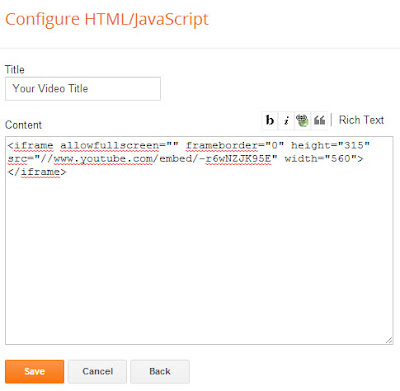
5. To resize your youtube video according to the size of your left or right sidebar, you can change it as explained in 2nd method.
Fourth Method:
To Embed Youtube Videos in Joomla Article follow the given below steps.
1. sign in your Joomla Administrator account .
2. Download first this plugin Easy Embed Youtube Video.
3. Folow below step to embed video.
Go to Extension Manager> > Choose File >> browse the plugin you downloaded >> click Upload & Install.
4. When you allow your plugin by going to Manage and finding Content, Use Ctrl + F for more faster searching.
5. After allowing your plugin go to Content >>Article Manager >> Add a New Article.
6. Type the title of your video together with the alias.
7. Now go to youtube.com and search your video which you want to embed. Copy the link of your youtube video.
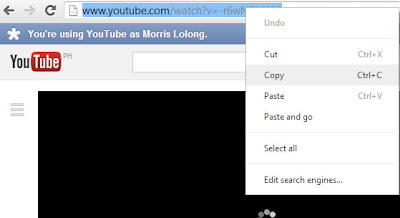
8. Move back Joomla article editor >> Toggle Editor. Paste the link inside your article type some description about video and save it.
Fifth Method:
To Embed Youtube Videos in Joomla Sidebar follow below steps.
1. Sign in in your Joomla administrator account.
2. Download first this plugin Sorcerer for Joomla 2.5, 3.0 version and 3.1. Download here for Joomla 1.5 version.
3. Go to Extension Manager >> Choose File >> browse for the Sorcerer you downloaded and click Upload & Install.
4. Click on Manage or Plugin Manager and check for Button “Sourcerer” and “System NoNumber Sourcerer” or “System Sourcerer”. Make sure these buttons are all enabled.
5. Click on Module Manager >> click on “New”.
6. Find and choose “Custom HTML”.
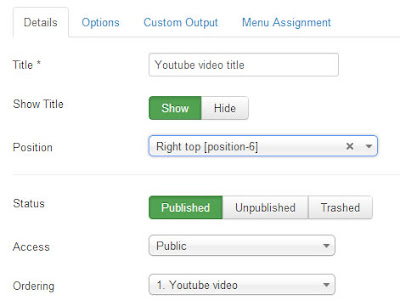
8. Click on Custom Output >> click Toggle Editor >> Insert Code.
Replace the code below :
by the embed code of your youtube video.
.jpg)
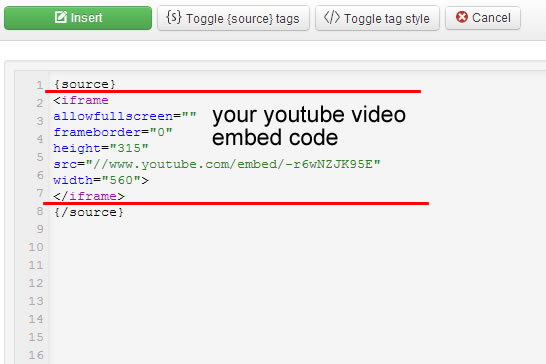
9. Make sure the embed code of your youtube video is inside the {source}{/source} tags as shown in above image.
10. After that click the INSERT button
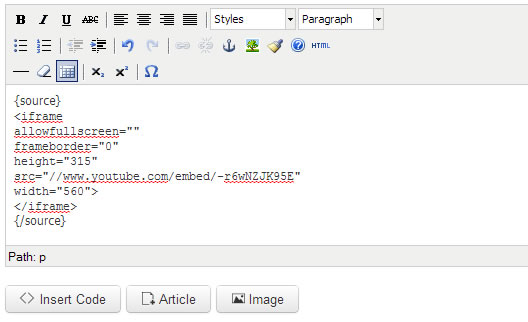
11. Now click on Save button and you are all done. Surely set the Position of your module to the left or right sidebar of your Joomla website. The same method is for joomla 1.5 version.
Sixth Method:
To Embed Youtube Videos in Joomla Article follow given below steps.
1. Do first steps 1 to 4 of "embedding youtube video in Joomla sidebar" before continuing this steps.
2. Now assuming that you already finished doing step 1. Go to Content > Article Manager > Add a New Article.
3. Put the title and alias of your article for your video.
4. Now click Toggle Editor to switch to HTML mode.
5. Now open a new tab and go to youtube.com to get the embed code of your video.
6. You can get the embed code of your youtube video by following the Second Way of this post.
7. Now go back to your Joomla article and click Insert code.
8. Replace the code below :
by the embed code you copied in youtube. Note that your embed code should always be inside the open and close {sourcerer}{/sourcerer} tags. See the image below. When done click the INSERT button.
.jpg)
9. Now your embed code for your youtube video is now inserted inside your Joomla article. Click the Save button and you are all done.
Seventh Method :
To Embed Youtube Videos using HTML Editor like Notepad follow given below steps
1.Open notepad in your system
2. Now go to youtube.com and find your video which you want to embed. Below your video there will be share button click on it. Now click Embed. Below, check "Use old embed code". Copy the code that will be generated.
3. In Notepad and paste your youtube embed code. The code should look like as code below.
4. Simplify the code by Deleting all the colored code above and your code should look like the code below.
5. Just add http: in the src="//www.youtube....." . Your final code should look like as given below code.
6. Now go to File > Save As.
7.Type the name for your video and save it with .HTML extension. See the image below.
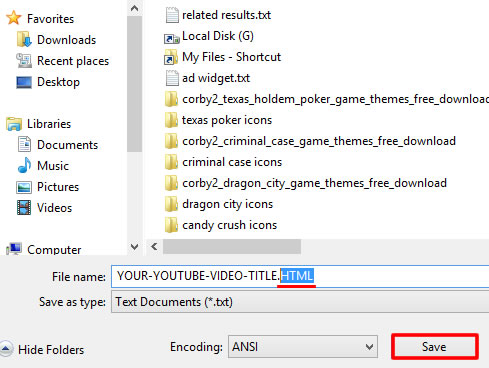
8. open your HTML file using your Google Chrome, Mozilla, etc. to see your embedded Youtube video.
Eight Method:
To Embed Youtube Videos in Powerpoint 2007 follow given below steps.
1. Open your Powerpoint 2007.
2. Go to the Developer tab, if it is not available click the MS Office logo and click the Powerpoint Options.
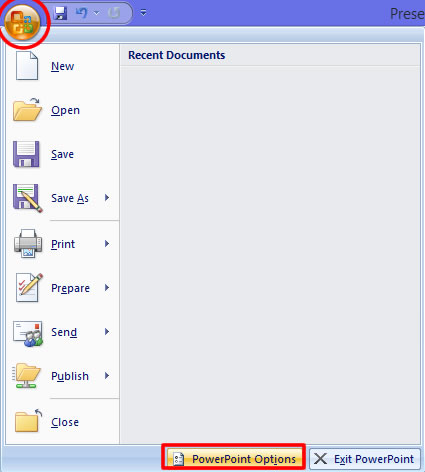
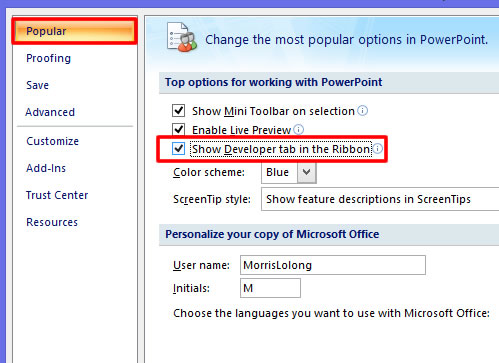
3. Go to Popular > check “Show Developer tab in the Ribbon”. And press OK. See the image below.
4. Click the Developer tab

5. Now click the “More Controls button”.
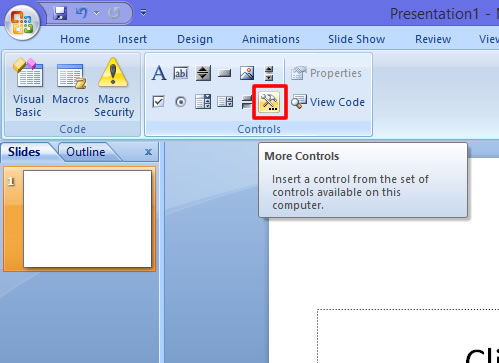
6. Go and find "Shockwave Flash Object" select it and press OK.
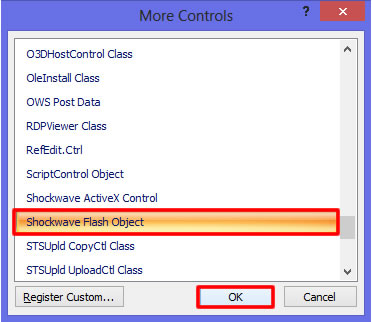
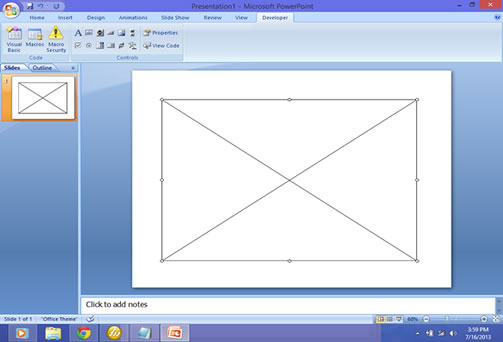
7. Now your mouse pointer will be look like a plus sign ( + ), start drawing your canvas for your youtube video.
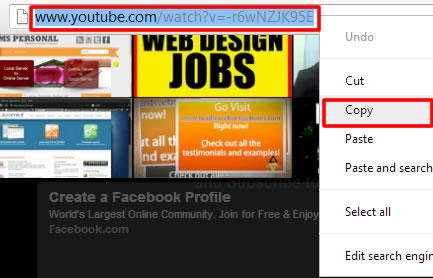
8. Now go to youtube.com and find the URL of your video. Copy your youtube video link.
9. Go to powerpoint presentation and right click your rectangle canvas and click Property.
10. Find the following and do as stated :
Movie : [ paste here your youtube video url ]
Note : for your video URL, remove "watch?" and change = with /.
Original Youtube video URL : http://www.youtube.com/watch?v=-r6wNZJK95E
Modified Embed Code for PPT : http://www.youtube.com/v/-r6wNZJK95E
Loop : [ set it to False ]
FrameNum : [ set it to 0 ]
11. Exit Properties, press F5 and your Youtube video is now ready to play right inside your Powerpoint presentation.
Ninth Method: Embed Youtube Videos in Wordpress
Watch the given below image to embed video in wordpress.
<iframe allowfullscreen="" frameborder="0" height="315"src="//www.youtube.com/embed/-r6wNZJK95E" width="560"></iframe>
Third Method:
This method tells you to Embed Youtube Videos in Blogger Sidebar
1. Log in into your blogger account
2. Now go to Layout/PageElements form left side of blogger’s dashboard.
3. If your template layout has a right sidebar or left sidebar, choose from it and just add a new gadget. Click the "Add a Gadget" > HTML/JavaScript.
4. In "Title" type the title of video and in content tab paste youtube video embed code. ( code can be obtain using 2nd method). Click the Save button to finish.

5. To resize your youtube video according to the size of your left or right sidebar, you can change it as explained in 2nd method.
Fourth Method:
To Embed Youtube Videos in Joomla Article follow the given below steps.
1. sign in your Joomla Administrator account .
2. Download first this plugin Easy Embed Youtube Video.
3. Folow below step to embed video.
Go to Extension Manager> > Choose File >> browse the plugin you downloaded >> click Upload & Install.
4. When you allow your plugin by going to Manage and finding Content, Use Ctrl + F for more faster searching.
5. After allowing your plugin go to Content >>Article Manager >> Add a New Article.
6. Type the title of your video together with the alias.
7. Now go to youtube.com and search your video which you want to embed. Copy the link of your youtube video.

8. Move back Joomla article editor >> Toggle Editor. Paste the link inside your article type some description about video and save it.
Fifth Method:
To Embed Youtube Videos in Joomla Sidebar follow below steps.
1. Sign in in your Joomla administrator account.
2. Download first this plugin Sorcerer for Joomla 2.5, 3.0 version and 3.1. Download here for Joomla 1.5 version.
3. Go to Extension Manager >> Choose File >> browse for the Sorcerer you downloaded and click Upload & Install.
4. Click on Manage or Plugin Manager and check for Button “Sourcerer” and “System NoNumber Sourcerer” or “System Sourcerer”. Make sure these buttons are all enabled.
5. Click on Module Manager >> click on “New”.
6. Find and choose “Custom HTML”.

8. Click on Custom Output >> click Toggle Editor >> Insert Code.
Replace the code below :
<!-- You can place html anywhere within the source tags --> <script language="javascript" type="text/javascript"> // You can place JavaScript like this </script> <?php // You can place PHP like this ?>
by the embed code of your youtube video.
.jpg)
9. Make sure the embed code of your youtube video is inside the {source}{/source} tags as shown in above image.
10. After that click the INSERT button

11. Now click on Save button and you are all done. Surely set the Position of your module to the left or right sidebar of your Joomla website. The same method is for joomla 1.5 version.
Sixth Method:
To Embed Youtube Videos in Joomla Article follow given below steps.
1. Do first steps 1 to 4 of "embedding youtube video in Joomla sidebar" before continuing this steps.
2. Now assuming that you already finished doing step 1. Go to Content > Article Manager > Add a New Article.
3. Put the title and alias of your article for your video.
4. Now click Toggle Editor to switch to HTML mode.
5. Now open a new tab and go to youtube.com to get the embed code of your video.
6. You can get the embed code of your youtube video by following the Second Way of this post.
7. Now go back to your Joomla article and click Insert code.
8. Replace the code below :
<!-- You can place html anywhere within the source tags --> <script language="javascript" type="text/javascript"> // You can place JavaScript like this </script> <?php // You can place PHP like this ?>
by the embed code you copied in youtube. Note that your embed code should always be inside the open and close {sourcerer}{/sourcerer} tags. See the image below. When done click the INSERT button.
.jpg)
9. Now your embed code for your youtube video is now inserted inside your Joomla article. Click the Save button and you are all done.
Seventh Method :
To Embed Youtube Videos using HTML Editor like Notepad follow given below steps
1.Open notepad in your system
2. Now go to youtube.com and find your video which you want to embed. Below your video there will be share button click on it. Now click Embed. Below, check "Use old embed code". Copy the code that will be generated.
3. In Notepad and paste your youtube embed code. The code should look like as code below.
<object width="560" height="315"><param name="movie" value="//www.youtube.com/v/-r6wNZJK95E?hl=en_US&version=3"></param><param name="allowFullScreen" value="true"></param><param name="allowscriptaccess" value="always"></param><embed src="//www.youtube.com/v/-r6wNZJK95E?hl=en_US&version=3" type="application/x-shockwave-flash" width="560" height="315"allowscriptaccess="always" allowfullscreen="true"></embed></object>
4. Simplify the code by Deleting all the colored code above and your code should look like the code below.
<embed src="//www.youtube.com/v/-r6wNZJK95E" type="application/x-shockwave-flash" width="560" height="315"></embed>
5. Just add http: in the src="//www.youtube....." . Your final code should look like as given below code.
<embed src="http://www.youtube.com/v/-r6wNZJK95E" type="application/x-shockwave-flash" width="560" height="315"></embed>
6. Now go to File > Save As.
7.Type the name for your video and save it with .HTML extension. See the image below.

8. open your HTML file using your Google Chrome, Mozilla, etc. to see your embedded Youtube video.
Eight Method:
To Embed Youtube Videos in Powerpoint 2007 follow given below steps.
1. Open your Powerpoint 2007.
2. Go to the Developer tab, if it is not available click the MS Office logo and click the Powerpoint Options.

3. Go to Popular > check “Show Developer tab in the Ribbon”. And press OK. See the image below.
4. Click the Developer tab

5. Now click the “More Controls button”.

6. Go and find "Shockwave Flash Object" select it and press OK.

7. Now your mouse pointer will be look like a plus sign ( + ), start drawing your canvas for your youtube video.

8. Now go to youtube.com and find the URL of your video. Copy your youtube video link.

9. Go to powerpoint presentation and right click your rectangle canvas and click Property.
10. Find the following and do as stated :
Movie : [ paste here your youtube video url ]
Note : for your video URL, remove "watch?" and change = with /.
Original Youtube video URL : http://www.youtube.com/watch?v=-r6wNZJK95E
Modified Embed Code for PPT : http://www.youtube.com/v/-r6wNZJK95E
Loop : [ set it to False ]
FrameNum : [ set it to 0 ]
11. Exit Properties, press F5 and your Youtube video is now ready to play right inside your Powerpoint presentation.
Ninth Method: Embed Youtube Videos in Wordpress
Watch the given below image to embed video in wordpress.
Tenth Method: Embed Youtube Videos in Website To Embed Youtube Videos in Website watch given below video.
Thursday, July 28, 2016
How to Combine Two AdSense Ads Side by Side in Blogger

Except a few,no one has knowledge to combine two adsense ads side by side in blogger.This article will fully guide you in this regard.For highest publicity than you can easily do that using a simple table HTML code. It will increase your CRT if you combine two adsense account side by side.You can easily do that if you have knowledge about CSS.
.jpg)

Above image is full representation that how two ads combine side by side and will look like.
You can apparently change the ads sizes but the suggested one are 300 x 250 or 200 x 200 because bigger the size the more space you will need. So follow the given below steps for installing this in your blogger.
1. Go to Blogger > Template > Edit HTML.
2. Now check mark Expand Widget Templates and Press Ctrl + F.
3. Now search for
<data:post.body/>
4. if you want to display ads below post title than paste given below highlighted code above this searched tag or if you want to show ads in your post footer than paste it below the searched tag.
<table width="520" cellspacing="0" cellpadding="0" border="0"> <tr> <td width="250" style="padding: 5px;" align="center"> ADSENSE CODE 1 </td> <td width="250" style="padding: 5px;" align="left"> ADSENSE CODE 2 </td> </tr> </table>
5. Now you just need to paste the two adsense code where it is mentioned Adsense Code 1 and Adsense code 2.
6. Important You will have to convert the adsense code so that it can be accepted by the template so you just need to use converter and get the modified code and paste it there.
Tuesday, July 19, 2016
7 Tips To Improve Your Website’s Alexa Rank

Among best sources to get high traffic ranking one is ALEXA.This is California based Company.Alexa allows you to get high global traffic ranking for all kinds of websites and bloggers.It provides you huge traffic on the base of unique visitors and the number of page views per visitor. It also provides the traffic rank of a website in a particular country and search analytic which helps you to earn money.There are many benefits of getting Alexa rank.A website or blogger which has large traffic it means that it has pure content,more ads and regular posts.Alexa ranking is best in many ways especially when you want to sale your website.At sale time your's site alexa ranking matters not page views.Below are simple tips to improve your Alexa ranking.
1. Content

2. Create an account on Alexa.com
Most important step is that first of all make an account on Alexa and add a small description related to your website.it will provide you dashboard with extra features and also add logo of your site.After creating an account you should claim your site.
3. Stay Active

Stay active with your site.Regularly add atleat 4 to 6 post on your blog if you are new user.1 post is enough for regular user.If you remain active with your site it will increase you page views.
4. Social Media

Best way t get huge traffic is use of social media.Share you post on social media it will help you to get high traffic. Apart fromTwitter, Facebook, LinkedIn, StumbleUpon and Pinterest you should make account given below social medias.
Reddit.com
Digg.com
Delicious.com
Scoop.it.com
Chime.in
Tumblr.com
5. Optimize your Website
Always make sure that your website is indexed by the Google Spider after each updates.In order to index your site google webmaster tool bing webmaster tools help alot.
6. Backlinks
Backlinks is another tool to improve alexa ranking.If you use more backlinks in your post it will surely increase blog's traffic.Always use links from trusted sites.To get backlinks create an account on social media, participate in discussions and Comment on other blogs.
7. Install Alexa Widget
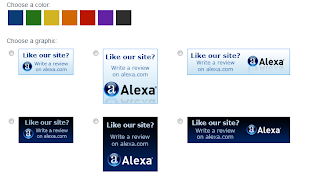
Alexa widget is a best tool which helps you to check ranking without visiting the alexa website.Alexa tool bar when you downloaded from alexa website it will check your ranking.
1. Content

Content is main thing and pure content is considered first step towards success in blogging and writing.You visitors's strength depends upon the quality of your content.High quality and pure content is essential and you should optimize your content landing pages.Copy right material reduce your page views and will leave a loose impact on your visitors and may happen next time they will not visit your blog or website.Always add related post and popular post on your site.
2. Create an account on Alexa.com
Most important step is that first of all make an account on Alexa and add a small description related to your website.it will provide you dashboard with extra features and also add logo of your site.After creating an account you should claim your site.
3. Stay Active

Stay active with your site.Regularly add atleat 4 to 6 post on your blog if you are new user.1 post is enough for regular user.If you remain active with your site it will increase you page views.
4. Social Media
Best way t get huge traffic is use of social media.Share you post on social media it will help you to get high traffic. Apart fromTwitter, Facebook, LinkedIn, StumbleUpon and Pinterest you should make account given below social medias.
Reddit.com
Digg.com
Delicious.com
Scoop.it.com
Chime.in
Tumblr.com
5. Optimize your Website
Always make sure that your website is indexed by the Google Spider after each updates.In order to index your site google webmaster tool bing webmaster tools help alot.
6. Backlinks
Backlinks is another tool to improve alexa ranking.If you use more backlinks in your post it will surely increase blog's traffic.Always use links from trusted sites.To get backlinks create an account on social media, participate in discussions and Comment on other blogs.
7. Install Alexa Widget

Alexa widget is a best tool which helps you to check ranking without visiting the alexa website.Alexa tool bar when you downloaded from alexa website it will check your ranking.
Subscribe to:
Posts (Atom)