Showing posts with label Videos. Show all posts
Showing posts with label Videos. Show all posts
Thursday, August 4, 2016
How To Download Videos From Youtube Without Using Any Software

Step 1:Select any you tube video which you want to download as shown in below image.

Step 2:
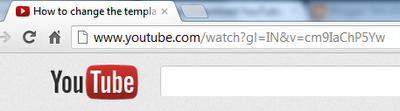
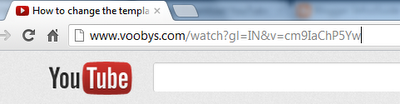
Click on address bar and carefully replace “youtube” with “voobys“.
Before
After
Step 3: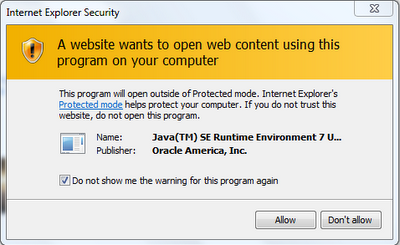
Step 5:
Youtube Video Quality

Step 6:
Before

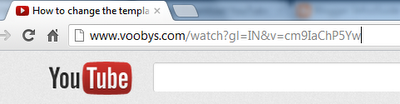
Step 3:
Press ENTER and you will be redirected to a new page.
Step 4:
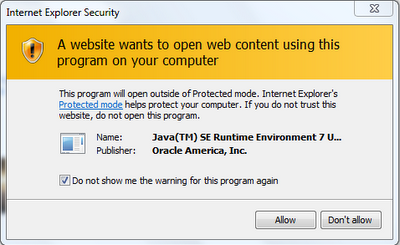
Voobys use Java to run YouTube videos , so allow the Java to run on this site and use “Always Run on this Site”Or “Dont show me warning again for this site” for easy access to this site in future.
Step 4:
Voobys use Java to run YouTube videos , so allow the Java to run on this site and use “Always Run on this Site”Or “Dont show me warning again for this site” for easy access to this site in future.
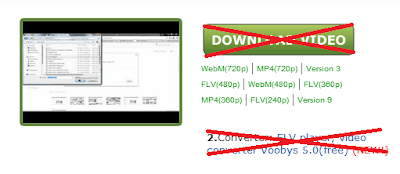
You will get different videos with multiple version and quality to download.
Youtube Video Quality

Voobys Video Qualities available for download

Step 6:
Choose any format and quality of video to download ,and download would start.
Note:
Note:
Never click on cross images for downloading they are not downloading links,they are ads or unwanted products.

Monday, August 1, 2016
Top 10 Simple & Easy Methods To Embed You Tube Videos in Blogger,Website,Joomla and Wordpress
This post clearly explained top 10 ways to embed you tube videos in Blogger, Wordpress, Joomla, or simply inside the HTML code of your blog or website.You can choose any one which you understand easily to embed you tube videos

Ist Method:
1. Go to your Blogger account and Sign in by entering email address and password.
2. Click the NEW POST button.
3. Now click the "Insert a video" icon to embed youtube video as shown in given below image
 4. New frame will open.From most left side select "From Youtube".
5. Inside the search bar search the video you want to embed or paste the url of video which you want to embed.Hit ENTER or click on magnifying glass button.
6.Result will be shown.Select particular video and click on "Select" button below.


8. In order to resize your youtube video, click on HTML and you will see the code below.
<div class="separator" style="clear: both; text-align: center;"> <object class="BLOGGER-youtube-video" classid="clsid:D27CDB6E-AE6D-11cf-96B8-444553540000" codebase="http://download.macromedia.com/pub/shockwave/cabs/flash/swflash.cab#version=6,0,40,0" data-thumbnail-src="http://img.youtube.com/vi/-r6wNZJK95E/0.jpg" height="266" width="320"><param name="movie" value="http://youtube.googleapis.com/v/-r6wNZJK95E&source=uds" /><param name="bgcolor" value="#FFFFFF" /><param name="allowFullScreen" value="true" /><embed width="320" height="266" src="http://youtube.googleapis.com/v/-r6wNZJK95E&source=uds" type="application/x-shockwave-flash" allowfullscreen="true"></embed></object></div>
<br /> <br />
9. Change the value of the colored WIDTH and HEIGHT above to resize your youtube video.
This method tells you How to Embed Youtube Videos in Blogger Article/Post.
1. Go to Youtube website and search the video which you want to embed in blogger.

2. Below the youtube video you will find there the "Share" tab, click on and find "Embed" and click on it also. youtube video embed code will be appear. Copy and paste this code in blogs’s HTML frame.
3. To resize your youtube video, you can change the values of the WIDTH and the HEIGHT as in ist method explained. Below code is given for help.
Third Method:
This method tells you to Embed Youtube Videos in Blogger Sidebar
1. Log in into your blogger account
2. Now go to Layout/PageElements form left side of blogger’s dashboard.
3. If your template layout has a right sidebar or left sidebar, choose from it and just add a new gadget. Click the "Add a Gadget" > HTML/JavaScript.
4. In "Title" type the title of video and in content tab paste youtube video embed code. ( code can be obtain using 2nd method). Click the Save button to finish.
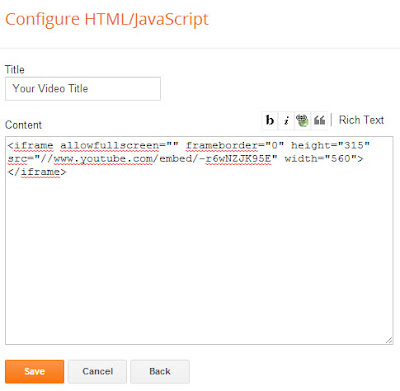
5. To resize your youtube video according to the size of your left or right sidebar, you can change it as explained in 2nd method.
Fourth Method:
To Embed Youtube Videos in Joomla Article follow the given below steps.
1. sign in your Joomla Administrator account .
2. Download first this plugin Easy Embed Youtube Video.
3. Folow below step to embed video.
Go to Extension Manager> > Choose File >> browse the plugin you downloaded >> click Upload & Install.
4. When you allow your plugin by going to Manage and finding Content, Use Ctrl + F for more faster searching.
5. After allowing your plugin go to Content >>Article Manager >> Add a New Article.
6. Type the title of your video together with the alias.
7. Now go to youtube.com and search your video which you want to embed. Copy the link of your youtube video.
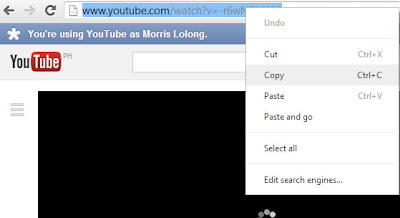
8. Move back Joomla article editor >> Toggle Editor. Paste the link inside your article type some description about video and save it.
Fifth Method:
To Embed Youtube Videos in Joomla Sidebar follow below steps.
1. Sign in in your Joomla administrator account.
2. Download first this plugin Sorcerer for Joomla 2.5, 3.0 version and 3.1. Download here for Joomla 1.5 version.
3. Go to Extension Manager >> Choose File >> browse for the Sorcerer you downloaded and click Upload & Install.
4. Click on Manage or Plugin Manager and check for Button “Sourcerer” and “System NoNumber Sourcerer” or “System Sourcerer”. Make sure these buttons are all enabled.
5. Click on Module Manager >> click on “New”.
6. Find and choose “Custom HTML”.
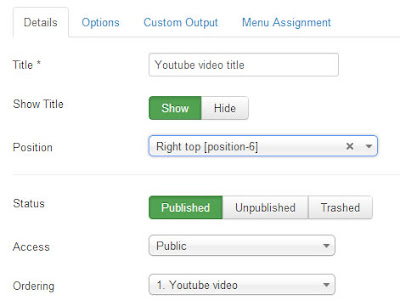
8. Click on Custom Output >> click Toggle Editor >> Insert Code.
Replace the code below :
by the embed code of your youtube video.
.jpg)
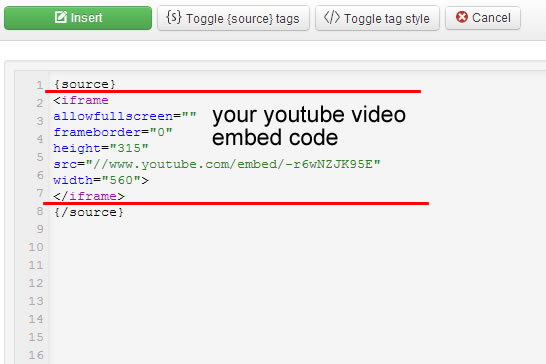
9. Make sure the embed code of your youtube video is inside the {source}{/source} tags as shown in above image.
10. After that click the INSERT button
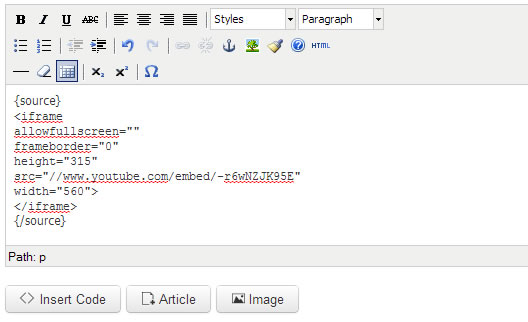
11. Now click on Save button and you are all done. Surely set the Position of your module to the left or right sidebar of your Joomla website. The same method is for joomla 1.5 version.
Sixth Method:
To Embed Youtube Videos in Joomla Article follow given below steps.
1. Do first steps 1 to 4 of "embedding youtube video in Joomla sidebar" before continuing this steps.
2. Now assuming that you already finished doing step 1. Go to Content > Article Manager > Add a New Article.
3. Put the title and alias of your article for your video.
4. Now click Toggle Editor to switch to HTML mode.
5. Now open a new tab and go to youtube.com to get the embed code of your video.
6. You can get the embed code of your youtube video by following the Second Way of this post.
7. Now go back to your Joomla article and click Insert code.
8. Replace the code below :
by the embed code you copied in youtube. Note that your embed code should always be inside the open and close {sourcerer}{/sourcerer} tags. See the image below. When done click the INSERT button.
.jpg)
9. Now your embed code for your youtube video is now inserted inside your Joomla article. Click the Save button and you are all done.
Seventh Method :
To Embed Youtube Videos using HTML Editor like Notepad follow given below steps
1.Open notepad in your system
2. Now go to youtube.com and find your video which you want to embed. Below your video there will be share button click on it. Now click Embed. Below, check "Use old embed code". Copy the code that will be generated.
3. In Notepad and paste your youtube embed code. The code should look like as code below.
4. Simplify the code by Deleting all the colored code above and your code should look like the code below.
5. Just add http: in the src="//www.youtube....." . Your final code should look like as given below code.
6. Now go to File > Save As.
7.Type the name for your video and save it with .HTML extension. See the image below.
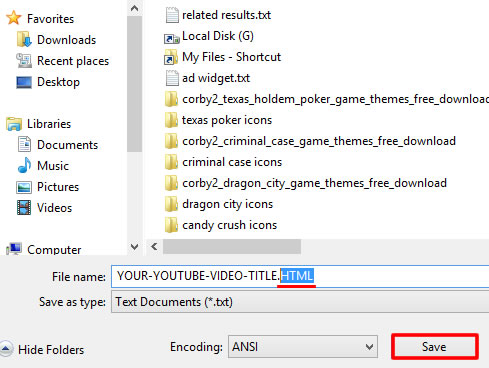
8. open your HTML file using your Google Chrome, Mozilla, etc. to see your embedded Youtube video.
Eight Method:
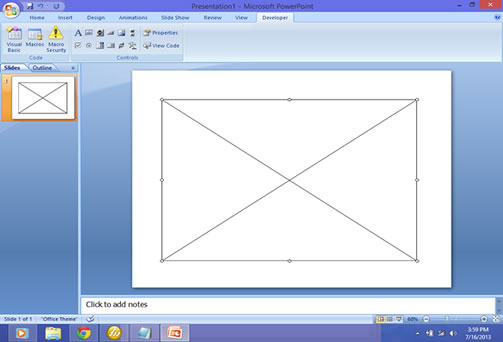
To Embed Youtube Videos in Powerpoint 2007 follow given below steps.
1. Open your Powerpoint 2007.
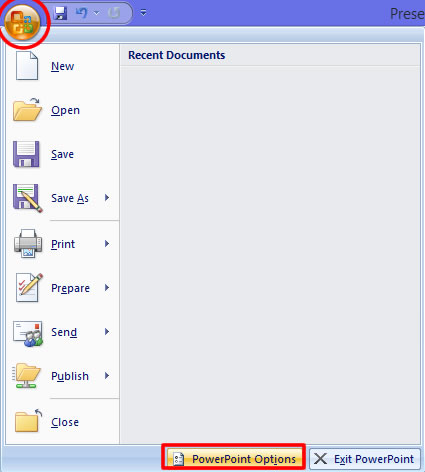
2. Go to the Developer tab, if it is not available click the MS Office logo and click the Powerpoint Options.
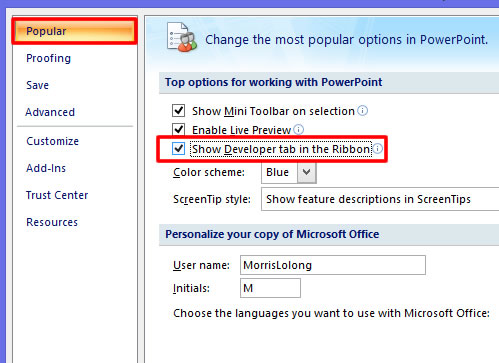
3. Go to Popular > check “Show Developer tab in the Ribbon”. And press OK. See the image below.
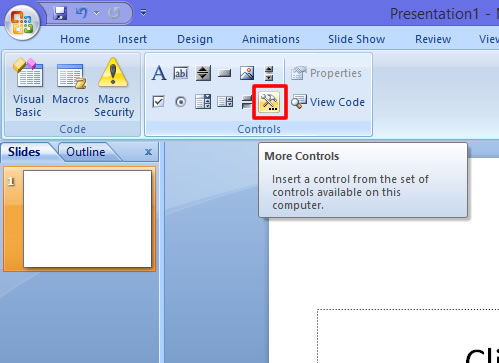
4. Click the Developer tab

5. Now click the “More Controls button”.
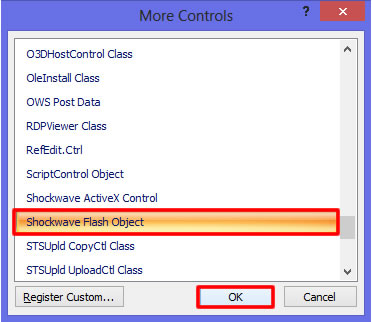
6. Go and find "Shockwave Flash Object" select it and press OK.
7. Now your mouse pointer will be look like a plus sign ( + ), start drawing your canvas for your youtube video.
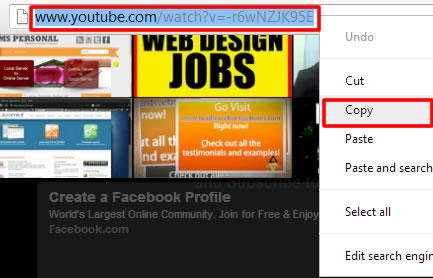
8. Now go to youtube.com and find the URL of your video. Copy your youtube video link.
9. Go to powerpoint presentation and right click your rectangle canvas and click Property.
10. Find the following and do as stated :
Movie : [ paste here your youtube video url ]
Note : for your video URL, remove "watch?" and change = with /.
Original Youtube video URL : http://www.youtube.com/watch?v=-r6wNZJK95E
Modified Embed Code for PPT : http://www.youtube.com/v/-r6wNZJK95E
Loop : [ set it to False ]
FrameNum : [ set it to 0 ]
11. Exit Properties, press F5 and your Youtube video is now ready to play right inside your Powerpoint presentation.
Ninth Method: Embed Youtube Videos in Wordpress
Watch the given below image to embed video in wordpress.
<iframe allowfullscreen="" frameborder="0" height="315"src="//www.youtube.com/embed/-r6wNZJK95E" width="560"></iframe>
Third Method:
This method tells you to Embed Youtube Videos in Blogger Sidebar
1. Log in into your blogger account
2. Now go to Layout/PageElements form left side of blogger’s dashboard.
3. If your template layout has a right sidebar or left sidebar, choose from it and just add a new gadget. Click the "Add a Gadget" > HTML/JavaScript.
4. In "Title" type the title of video and in content tab paste youtube video embed code. ( code can be obtain using 2nd method). Click the Save button to finish.

5. To resize your youtube video according to the size of your left or right sidebar, you can change it as explained in 2nd method.
Fourth Method:
To Embed Youtube Videos in Joomla Article follow the given below steps.
1. sign in your Joomla Administrator account .
2. Download first this plugin Easy Embed Youtube Video.
3. Folow below step to embed video.
Go to Extension Manager> > Choose File >> browse the plugin you downloaded >> click Upload & Install.
4. When you allow your plugin by going to Manage and finding Content, Use Ctrl + F for more faster searching.
5. After allowing your plugin go to Content >>Article Manager >> Add a New Article.
6. Type the title of your video together with the alias.
7. Now go to youtube.com and search your video which you want to embed. Copy the link of your youtube video.

8. Move back Joomla article editor >> Toggle Editor. Paste the link inside your article type some description about video and save it.
Fifth Method:
To Embed Youtube Videos in Joomla Sidebar follow below steps.
1. Sign in in your Joomla administrator account.
2. Download first this plugin Sorcerer for Joomla 2.5, 3.0 version and 3.1. Download here for Joomla 1.5 version.
3. Go to Extension Manager >> Choose File >> browse for the Sorcerer you downloaded and click Upload & Install.
4. Click on Manage or Plugin Manager and check for Button “Sourcerer” and “System NoNumber Sourcerer” or “System Sourcerer”. Make sure these buttons are all enabled.
5. Click on Module Manager >> click on “New”.
6. Find and choose “Custom HTML”.

8. Click on Custom Output >> click Toggle Editor >> Insert Code.
Replace the code below :
<!-- You can place html anywhere within the source tags --> <script language="javascript" type="text/javascript"> // You can place JavaScript like this </script> <?php // You can place PHP like this ?>
by the embed code of your youtube video.
.jpg)
9. Make sure the embed code of your youtube video is inside the {source}{/source} tags as shown in above image.
10. After that click the INSERT button

11. Now click on Save button and you are all done. Surely set the Position of your module to the left or right sidebar of your Joomla website. The same method is for joomla 1.5 version.
Sixth Method:
To Embed Youtube Videos in Joomla Article follow given below steps.
1. Do first steps 1 to 4 of "embedding youtube video in Joomla sidebar" before continuing this steps.
2. Now assuming that you already finished doing step 1. Go to Content > Article Manager > Add a New Article.
3. Put the title and alias of your article for your video.
4. Now click Toggle Editor to switch to HTML mode.
5. Now open a new tab and go to youtube.com to get the embed code of your video.
6. You can get the embed code of your youtube video by following the Second Way of this post.
7. Now go back to your Joomla article and click Insert code.
8. Replace the code below :
<!-- You can place html anywhere within the source tags --> <script language="javascript" type="text/javascript"> // You can place JavaScript like this </script> <?php // You can place PHP like this ?>
by the embed code you copied in youtube. Note that your embed code should always be inside the open and close {sourcerer}{/sourcerer} tags. See the image below. When done click the INSERT button.
.jpg)
9. Now your embed code for your youtube video is now inserted inside your Joomla article. Click the Save button and you are all done.
Seventh Method :
To Embed Youtube Videos using HTML Editor like Notepad follow given below steps
1.Open notepad in your system
2. Now go to youtube.com and find your video which you want to embed. Below your video there will be share button click on it. Now click Embed. Below, check "Use old embed code". Copy the code that will be generated.
3. In Notepad and paste your youtube embed code. The code should look like as code below.
<object width="560" height="315"><param name="movie" value="//www.youtube.com/v/-r6wNZJK95E?hl=en_US&version=3"></param><param name="allowFullScreen" value="true"></param><param name="allowscriptaccess" value="always"></param><embed src="//www.youtube.com/v/-r6wNZJK95E?hl=en_US&version=3" type="application/x-shockwave-flash" width="560" height="315"allowscriptaccess="always" allowfullscreen="true"></embed></object>
4. Simplify the code by Deleting all the colored code above and your code should look like the code below.
<embed src="//www.youtube.com/v/-r6wNZJK95E" type="application/x-shockwave-flash" width="560" height="315"></embed>
5. Just add http: in the src="//www.youtube....." . Your final code should look like as given below code.
<embed src="http://www.youtube.com/v/-r6wNZJK95E" type="application/x-shockwave-flash" width="560" height="315"></embed>
6. Now go to File > Save As.
7.Type the name for your video and save it with .HTML extension. See the image below.

8. open your HTML file using your Google Chrome, Mozilla, etc. to see your embedded Youtube video.
Eight Method:
To Embed Youtube Videos in Powerpoint 2007 follow given below steps.
1. Open your Powerpoint 2007.
2. Go to the Developer tab, if it is not available click the MS Office logo and click the Powerpoint Options.

3. Go to Popular > check “Show Developer tab in the Ribbon”. And press OK. See the image below.
4. Click the Developer tab

5. Now click the “More Controls button”.

6. Go and find "Shockwave Flash Object" select it and press OK.

7. Now your mouse pointer will be look like a plus sign ( + ), start drawing your canvas for your youtube video.

8. Now go to youtube.com and find the URL of your video. Copy your youtube video link.

9. Go to powerpoint presentation and right click your rectangle canvas and click Property.
10. Find the following and do as stated :
Movie : [ paste here your youtube video url ]
Note : for your video URL, remove "watch?" and change = with /.
Original Youtube video URL : http://www.youtube.com/watch?v=-r6wNZJK95E
Modified Embed Code for PPT : http://www.youtube.com/v/-r6wNZJK95E
Loop : [ set it to False ]
FrameNum : [ set it to 0 ]
11. Exit Properties, press F5 and your Youtube video is now ready to play right inside your Powerpoint presentation.
Ninth Method: Embed Youtube Videos in Wordpress
Watch the given below image to embed video in wordpress.
Tenth Method: Embed Youtube Videos in Website To Embed Youtube Videos in Website watch given below video.
Wednesday, July 27, 2016
How to Download Flash Videos in Google Chrome
.jpg)
How to Download Flash Videos in Google Chrome
Google Chrome is one of the best and quickweb browsers.It is used as browser to surf internet.It allows you to surf web pages,downloading audios,videos,uploading files,online games,and everything by this browser.You can easily surf internet just by onle click on relevant link.But if you want to upload or download a file on internet you face a little bit trouble.Downloading process becomes very slow and time consuming which irritates you.Many factors are involved behind the slow performance such as downloading add-ons, various pop ups etc.It becomes very difficult for you to sit in front of system and waiting till downloading completes. In tidy to conquer all these problems, it is suggested to download Flash videos in Google Chrome instead of any other.Some add-ons or extensions are required to download flash videos on other browser.Big advantage of google chrome is that you do not need to install any extension to download flash videos. You have to follow some simple and easy steps which are given below.
Step 1:
The primary step is to Inspect Element. Open the any webpage from which you want to flash video.
Step 2:
Right click the mouse and click on Inspect Element.
Step 3:
Copy Flash video’s URL On opening Inspect Element, you will get an option of swf on its bottom window.
Step 4:
Copy the flash video URLs. If you have choose two or more flash videos on your chosen web page you will get a number of swf URLs.
Step 5:
Now come across at their sizes and names and select the one that you think is suitable as per your requisite.
Step 6:
Open the webpage It is now time to open the flash video URL’s webpage in Google Chrome. Paste the flash video’s URL in Chrome’s address bar and open it.
Step 7:
After opening the Flash video URL, click on the “save page as” tab from the drop down or press Ctrl+S from your keyboard.
Step 8:
Click on the control the current page button to save the video on your PC. The Flash video downloading procedure is complete.Now you can play the video.
Another method of downloading videos:
There is an alternate of downloadind videos which is orbit download accelerator.You van quickly download videos by this accelerator.Simply you have to do is download it and configure it for downloading the shockwave extension. Orbit can be downloaded by logging on to given below link.
http://orbit-downloader.brothersoft.com/
Many other accelerator are available on internet which allows you to freely download videos.
Subscribe to:
Posts (Atom)