Showing posts with label Java. Show all posts
Showing posts with label Java. Show all posts
Tuesday, November 29, 2016
Download and Install JDK 7 on Window 8 | JDK 7 on Windows 8
This post is to teach you How to Download and Install JDK 7 on Window 8, Java Platform (JDK) 7u45 is Latest version of java. According to Oracle 3 billion devices Run Java so this show how important java is.


It's jdk-7u45-windows-i586.exe for Windows x86 in my case.


Read more »
Download and Install JDK 7 on Window 8
>>Go to Oracle Download Page: Click Here

>>Click to Accept License Agreement:
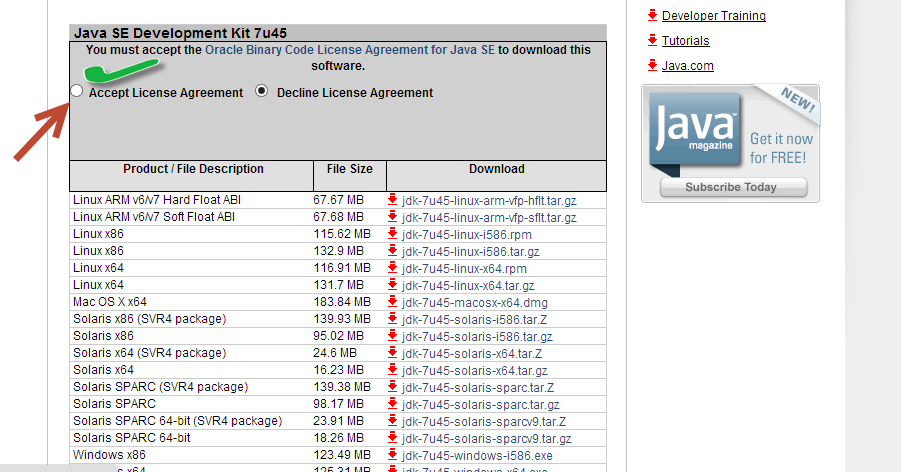
>> Select Download Windows x86 or x64.

>>Run Downloaded File.


Now you have successfully installed JDK But still you have to Set Environment Variable Path to Use java and javac in CMD, you can't run javac except you are in C:\Program Files\Java\jdk1.7.0_45\bin Because you haven't set PATH. So Follow This Link to Set Environment variable Path for JDK.

How to Set Environment Variable Path of JDK 7 on Window 8
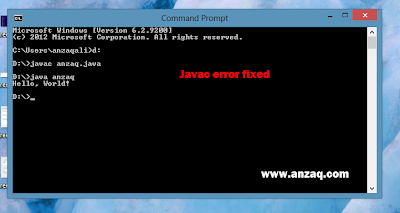
'javac' is not recognized an internal and external command ,operable program and batch file This error means you need to set Environment variable Path of jdk you can set path on command prompt also and this post is written to teach you how to set environment variable path from control panel setting on window 8.
Follow all steps and set Environment variable path of JDK.
This tells the system where to find JDK programs/Files.


Read more »
Follow all steps and set Environment variable path of JDK.
How to Set Environment variable path on cmd:
To set path using cmd First navigate to directory where your file is located assume your file is in Programs folder in C drive.
Type
C:\> cd \Programs
This makes C:\Programs the current directory.
C:\Programs> dir
This displays the directory contents.
C:\Programs> set path=%path%;C:\Program Files\Java\jdk1.7.0_45\bin Now you can Run your program using javac program_name.java
There will be no error saying javac is not recognized if you set your path perfectly
This is my Path where my jdk is located your path may vary
There will be no error saying javac is not recognized if you set your path perfectly
This is my Path where my jdk is located your path may vary
"C:\Program Files\Java\jdk1.7.0_45\bin"
Now i will tell you how to set environment variable path from control panel permanently then there will be no need to set path each time
Now i will tell you how to set environment variable path from control panel permanently then there will be no need to set path each time
How to Set Environment variable path manually:
Firstly Open Control Panel:

Search "Environment Variables" in Control Panel, and click "Edit the system environment variables".

CLick Advanced Tab and then Click Environment Variables

Select Path and then Click on Edit:

Now Add Path of Bin folder here
My full path of the bin folder of the JDK is:
C:\Program Files\Java\jdk1.7.0_02\bin
So add "C:\Program Files\Java\jdk1.7.0_45\bin" in the path string.

Click OK
Re-open Windows 8's "cmd" window, now You can use java and javac anywhere.

Hope this Post helped you to Set Environment Variable Path and if you Face any error then Comment me in comment This all procedure which i state you is self tested by me and working fine and if you student of Programming then don't forget to bookmark us we have so many articles on C/C++ Programming, C# Programming. Assembly Language Programming and Now i started to Add some Java Programs so Stay with us.
Friday, June 24, 2016
Java How to Program Early Objects 10th ed by Deitel

Java How to Program Early Objects 10th ed
Deitel and Deitel after Java How to Program 9th Edition here is 10th edition of Java How to Program early objects which also supports Java SE 7 and Java SE 8 . We contacted Deitel & Associates Page on Facebook and ask them How much 10th edition of Java is differ then old 9th Edition and they said
Tons of differences from 9/e plus new Java SE 8 features, JavaFX and more
But I think it won't be very much different. learning java from your books seems to be static from one edition to another yet it is early to judge this edition but I wish you get the point for not just advance the code but include new features and cover more OO topics which I was really disappointed that it was missed.
That book is still not available to Buy we will update our readers when it will be available.
Java How to Program, 10/e Early Objects vs. Late Objects Version
Now Java have two editions of Java How to Program, 10/e- Java How to Program, 10/e (Early Objects)
- Java How to Program, Late Object Version, 10/e
The "Early Objects" version is traditional presentation that we've been using for the past decade or so. This Book teach classes and objects early in the book (Chapter 3) and use them extensively throughout the book. Book have completely rewritten Chapter 3 for this edition and replaced the Grade Book case study with an Account example. New Edition have also added several more object-oriented examples in the early chapters.
Java How to Program, Late Object Version, 10/e, is meant specifically for college courses in which the instructor prefers to focus on procedural programming concepts for most or all of the first programming course. The early chapters focus on programming fundamentals without introducing object-oriented programming until Chapter 7.
Subscribe to:
Posts (Atom)