Showing posts with label windows. Show all posts
Showing posts with label windows. Show all posts
Sunday, December 11, 2016
How To Upgrade Window 8 To Window 8.1 easily
Microsoft developing cycle is developing more reliable discoveries for their user.Achievement form Window 2000 to Windows 7.Developing cycle not stop and move forward from window 8 to now window 8.1. Window 8 get amazing fame among its users due to its amazing features with user friendly interface.Now Microsoft thought one step above from window 8 and upgrade it to window 8.1. Window 8 lovers wants to have new look of window 8 in form of window 8.1 and want to use this on their system.Users thinks that it might be tricky or complex to upgrade window 8.Today i have select this topic to teach you How To Upgrade Window 8 To Window 8.1.Just you have to follow given below easy steps to enjoy the features of window 8.1.
.jpg "How To Upgrade Window 8 To Window 8.1")
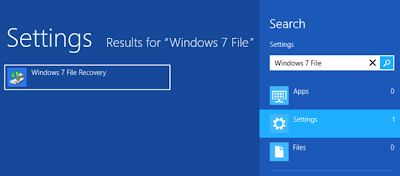
Press (WIN + W) to access search setting page.
Type "window 7 files" without commas in setting box.
Click on "window 7 file recovery".
I this steps a dialog box will appear which will ask you to specify location where you want to store your system backup.For example, you can create the system image on a set of DVD discs as in below image.

Note: In Windows 8, the System Repair disc is the same as the Recovery Drive.


specify your backup email account
Enter the security code that will be sent to you via your backup email account.
After entering all above data click on "Use Skydrive".

In this steps all your previously installed apps will be reinstalled. Third-party apps may only have a tile on the Start Screen. Just click the tile and the app will be completely reinstalled.
Read more »
How To Upgrade Window 8 To Window 8.1
Create Backup Image of System:
First most important steps is to create a back up of your system data.As mnay users find difficulty in upgradation steps so its necessary to have a backup using window 7 recovery tool.Advantage is that if you are unable to upgrade then you can find your old window configuration.Launche Window 7 Recovery Tool:
Follow below steps to Launche Window 7 Recovery Tool.Below imge show all these steps.Press (WIN + W) to access search setting page.
Type "window 7 files" without commas in setting box.
Click on "window 7 file recovery".

Create A system Image:
Next move to create a system image by below steps.
I this steps a dialog box will appear which will ask you to specify location where you want to store your system backup.For example, you can create the system image on a set of DVD discs as in below image.
Click on start backup.When it will completed you ask to insert DVD disc as you are going to have a your system backup on DVD disc.
Insert DVD disc and format it.
You'll be ask to create a System Repair disc when process is complete.If you already have recovery drive click on No and you have successfully backup of your system.Note: In Windows 8, the System Repair disc is the same as the Recovery Drive.
Download the Windows 8.1 installer
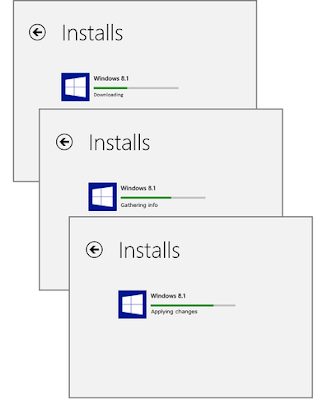
After creating backup next step is Downloading the Windows 8.1 installer.For this follow below steps.Go to >>start>>Window Store>>Window 8.1

Click on Download button. Downloading Process will be start.Window 8.1 downloading data is 4GB so its take time depending upon your internet connection.

Restart System:
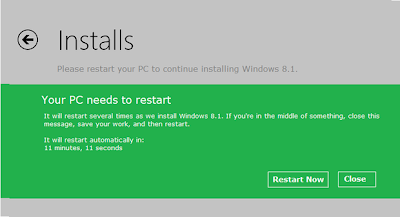
After downloading window 8.1, a message will be appear,may ask you to restart your syste. Clcik on Restart now.

Setup Process:
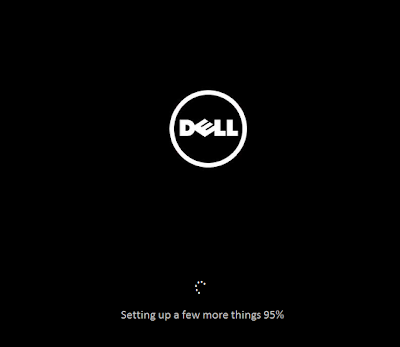
After restarting below screen will appear if you have DELL laptop/system.Now all your system data all important things will start setting up and proceed step by step till reach to 100% as below image show.

System will restart again.
Accept Window 8.1 License terms:
After rebooting,you will ask to accept terms of window 8.1 as below screen will appear. Click on "I Accept".
Use Express Setting:
On next window click on "use express setting".If you are not agree with by default setting then Click on "customize" and manage settings as you want.
Use Skydrive:
This steps is to use skydrive. You have enter your
Microsoft Account passwordspecify your backup email account
Enter the security code that will be sent to you via your backup email account.
After entering all above data click on "Use Skydrive".

Installation Of Apps:

Final Step:
After many steps you are successful upgrade to window 8.1. You will see start screen which will be transparent.You can customize it according to your choice.

Thursday, September 22, 2016
Top 20 Classic Windows 8 Themes Free Download
Top 20 Classic Windows 8 Themes Free Download
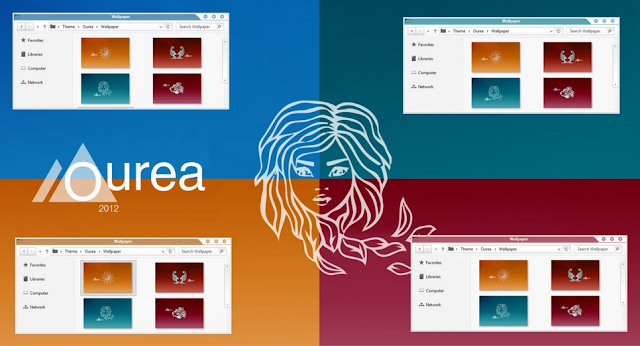
Windows 8 comes in computer market with such a amazing and awesome features. This represent best GUI which everyone just loved. Its amazing UI attracts users and really eye capturing which make you feel better without so much stress on your eyes in short it is best for eyes. There are lot of themes available but here in this post have list Top 20 Classic Windows 8 Themes Free Download which you will really love.
1. Different Touch 8
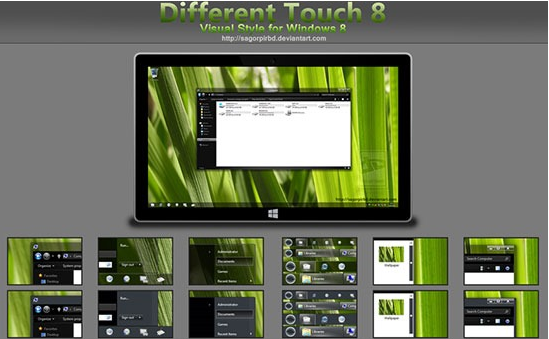
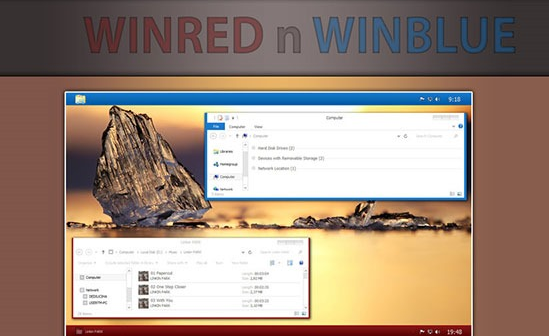



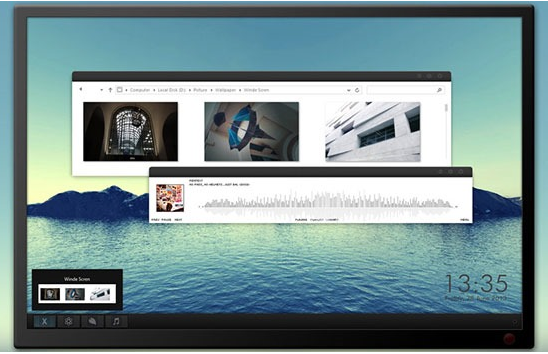

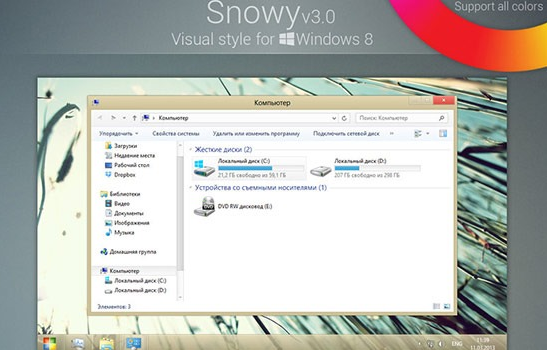
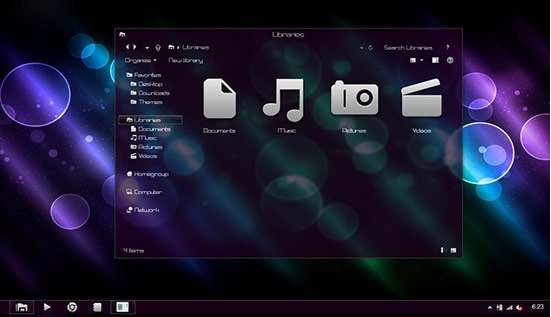
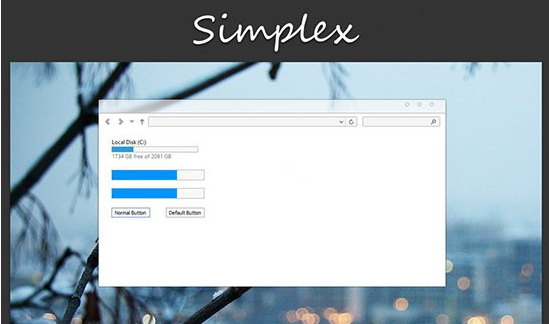
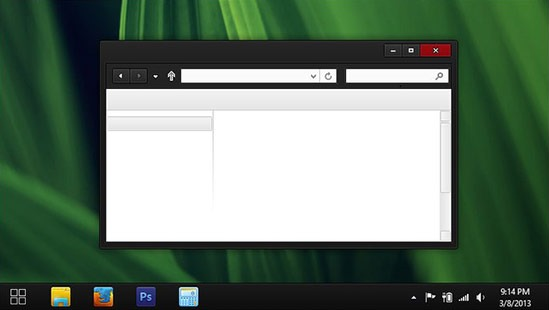
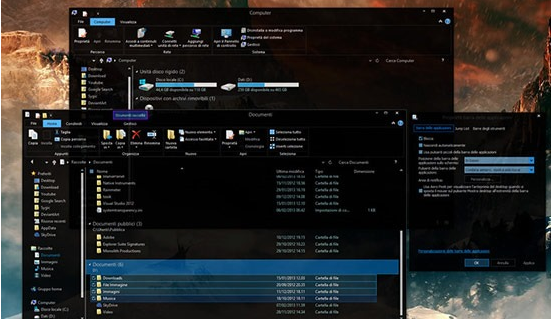
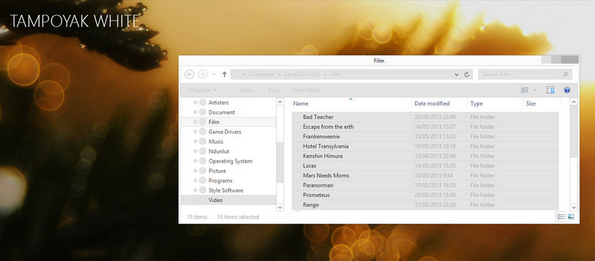


1. Different Touch 8


3. White Update


8. Simple Getuk


12. Ourea


16. Tampoyak


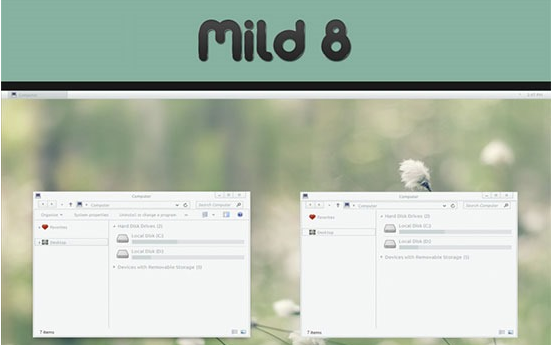
18. Mild 8

19. Nimbus for Win 8

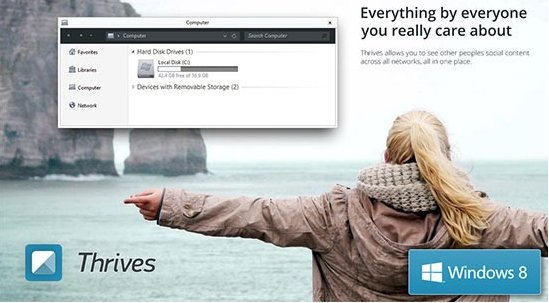
20. Win 8 – Thrives

Tuesday, September 20, 2016
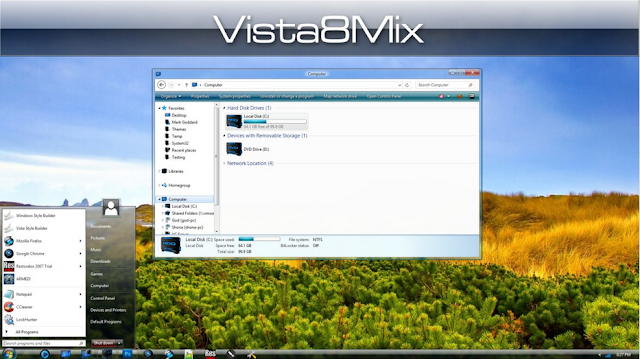
Top 10 Windows Vista Themes
Top 10 Windows Vista Themes
Microsoft Introducing many Windows versions in computer market and Windows Vista is one of them. This awesome OS use in personal computer including home and business desktops, laptops, tablet PCs and media center PCs. There are lot of Windows vista Themes available on internet but its difficult job to search best one so here in this post offers you best Top 10 Windows Vista Themes which you really love


Friday, September 16, 2016
Top 5 free Best Antivirus for Windows 8
Top 5 free Best Antivirus for Windows 8
Windows 8 come in market with awesome GUI and it is best version of Microsoft Windows that released on October 26, 2012 and now it is mostly use OS on PCs like home and business PCs, laptops, tablets and home theater PCs. Antivirus programs are very important to protect system from different kinds of viruses. There are lot of Antivirus programs are available but which is best for your operating system its a real matter because most of us don't have idea which Antivirus program should to chose for running OS. That's why here in this post have listed Top 5 free Best Antivirus for Windows 8 which will very useful all Windows 8 users

Avast is one of my favorite antivirus program and i personally use it and it is best Antivirus for desktops, laptops and as well as for Mobiles phones. It is so user friendly and gives complete description related to protection.
Top Features:
- Most important it can blocks Hacker attacks.
- It provides best protection for all online shopping and banking customers.
- It can safely runs all kinds of risky programs.
- It also blocks phishing scams and many more.
2. Bitdefender Antivirus Plus 2013

Bitdefender is one of the best antivirus program and it is most useful to protect Windows from Viruses, Malware, Spyware and Trojan etc. It offers best way to cure the infected files rather than deleting them.
Top Features:
- It provides best protection for all Facebook and Twitter users.
- Best for those who use online transactions.
- It quickly detects harmful websites.
- ID theft protector and much more.
3. Microsoft Security Essentials

It is another best and most useful Antivirus program for all Windows users, it is total free of cost. It provides easy and clear UI and user friendly.
Top Features:
- It is best for Malware detection.
- It can scan with fast speed.
- It can regular updates and provides root kit removal.

AVG Anti-Virus also in the list of best and top Anti-virus programs. It is made in such manners to make it easy to use for every PC and laptop user who wants to protect their system from kinds of viruses.
Top Features:
- It can easily detect all the threats like Viruses, Spyware, Malwares etc that so harmful for your system.
- Free to download.
- Easily update
5. Kaspersky Antivirus

Top 5 best antivirus program for Windows 8 is Kaspersky Antivirus. It is another best antivirus software because it is best defender of your system against all kinds of viruses, Trojans, spyware and from all other online threats.
Top Features:
- It provides time to time updates which very important.
- It protects from all kinds of Malicious attacks.
- It can easily download and install.
Wednesday, August 17, 2016
How To Solve Blue Screen Error in Window XP and Window 7
BSOD(Blue Screen of Death) is a very common Problem in window XP,7 and vista. that occurs in all the versions of the Windows OS such as Win XP or Win Vista or Windows 7.

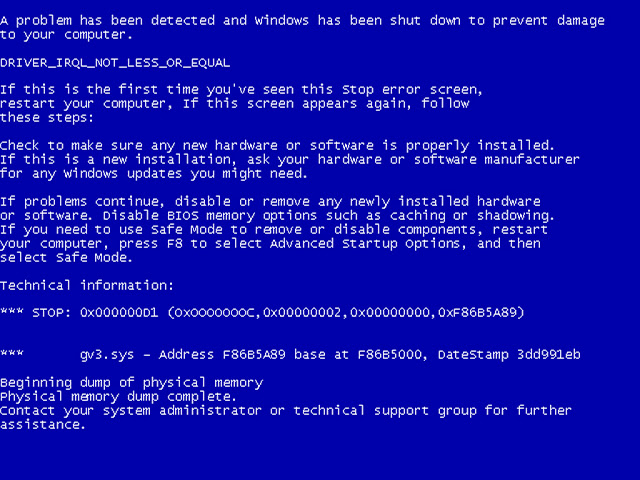
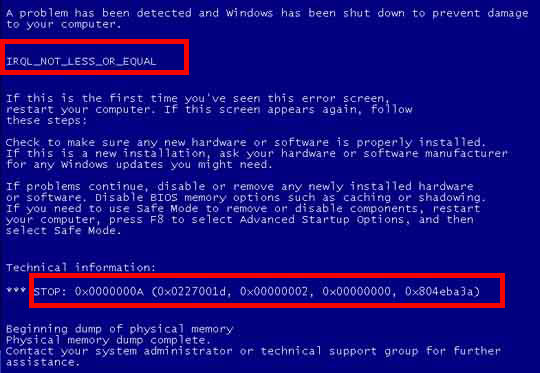
BSOD or Blue-screen, known as a “Stop Error”.Blue screen causes many problems like hardware and software related issues.Mostly when BSOD error occurred in your system, you can not reach the desktop or even if you have reached the desktop, the BSOD screen can appear all of a sudden while you are doing something important on your PC as given below in image.
First of all you should try your best to reach desktop.Some blue screen error never remove till you have to install new window or you have to delete all data in your system.
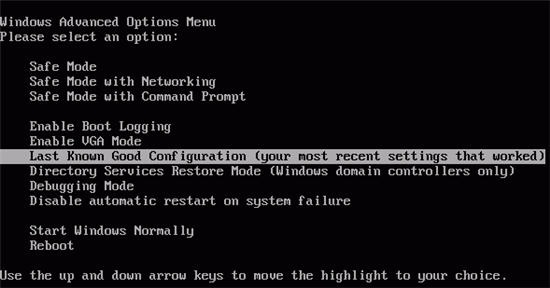
You can try the ‘Last Known Good Configuration’ option or by going into the Safe Mode. You can try both of these options by pressing the F8 key before the appearance of the Windows loading screen. If you do it correctly, you will see the ‘Windows Advanced Options Menu’ screen where you will see options like Safe Mode, Safe Mode with Networking and Last Known Good Configuration.
3).
6).
BSOD or Blue-screen, known as a “Stop Error”.Blue screen causes many problems like hardware and software related issues.Mostly when BSOD error occurred in your system, you can not reach the desktop or even if you have reached the desktop, the BSOD screen can appear all of a sudden while you are doing something important on your PC as given below in image.

BSODs come into view when Windows come across a severe difficulty and hang up the operating system. You can easily solve BSOD problem by probing all the factors that has triggered it. Below are some steps to overcome this issue.
1).First of all you should try your best to reach desktop.Some blue screen error never remove till you have to install new window or you have to delete all data in your system.
You can try the ‘Last Known Good Configuration’ option or by going into the Safe Mode. You can try both of these options by pressing the F8 key before the appearance of the Windows loading screen. If you do it correctly, you will see the ‘Windows Advanced Options Menu’ screen where you will see options like Safe Mode, Safe Mode with Networking and Last Known Good Configuration.

2).
When blue screen appear, you should read the message that appears on it. Mostly, the error screen contains a ‘STOP ERROR’ code that consists of numbers and alphabets. The code varies depending on the problems that have caused the respective BSOD error.Note this code error.

3).
If your system is showing the BSOD screen after new installation of hardware or software, you can try uninstalling the hardware or software and see if that resolves the issue. After uninstalling the software that caused the problem, you can scan your system by any antivirus software.
4).
Repairing registry errors by making use of registry applications can help in getting rid of BSODs that are caused by software.
5).
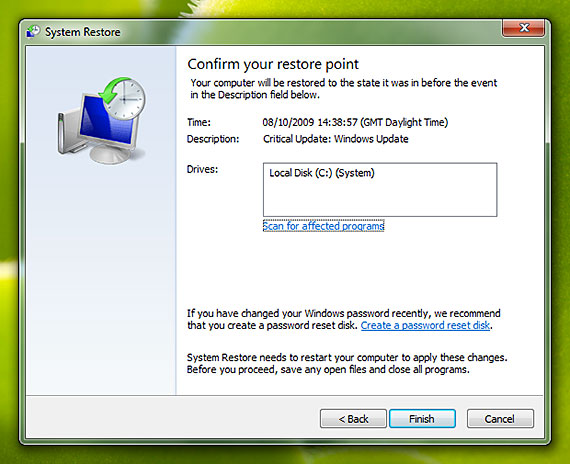
System Restore option to go back to a date when your system was working perfectly fine.

6).
Next option is that you can google search about blue screen error. Type the STOP ERROR code on Google and find out what solutions are available. Microsoft Support website is best source to solve your problem.All possible outcome you will get at Microsoft Support website.
Subscribe to:
Posts (Atom)